 I Can Work On
Help & FAQ
Got a question?
We’ve got you.
Hire and Work are two separate parts of I Can Work On. Pick yours below, or just search.
1 · I am
2 · I need help with
Employer Hire: find someone new
For people who don’t work for you yet. Post a job or search profiles, then pick someone. Costs $9.99 per post.
Already have the person and just need them on a day? That’s Work →
Quick job or long term job, which one do I post?
- Quick job: for today or tomorrow. Live for 24 hours, then it hides itself. Shown to people near the job.
- Long term job: for an ongoing role. Live for 30 days on the job board. Every post is reviewed to make sure it’s a real opening. Internships are free.
Both are $9.99 per post. Open Hire and pick one.
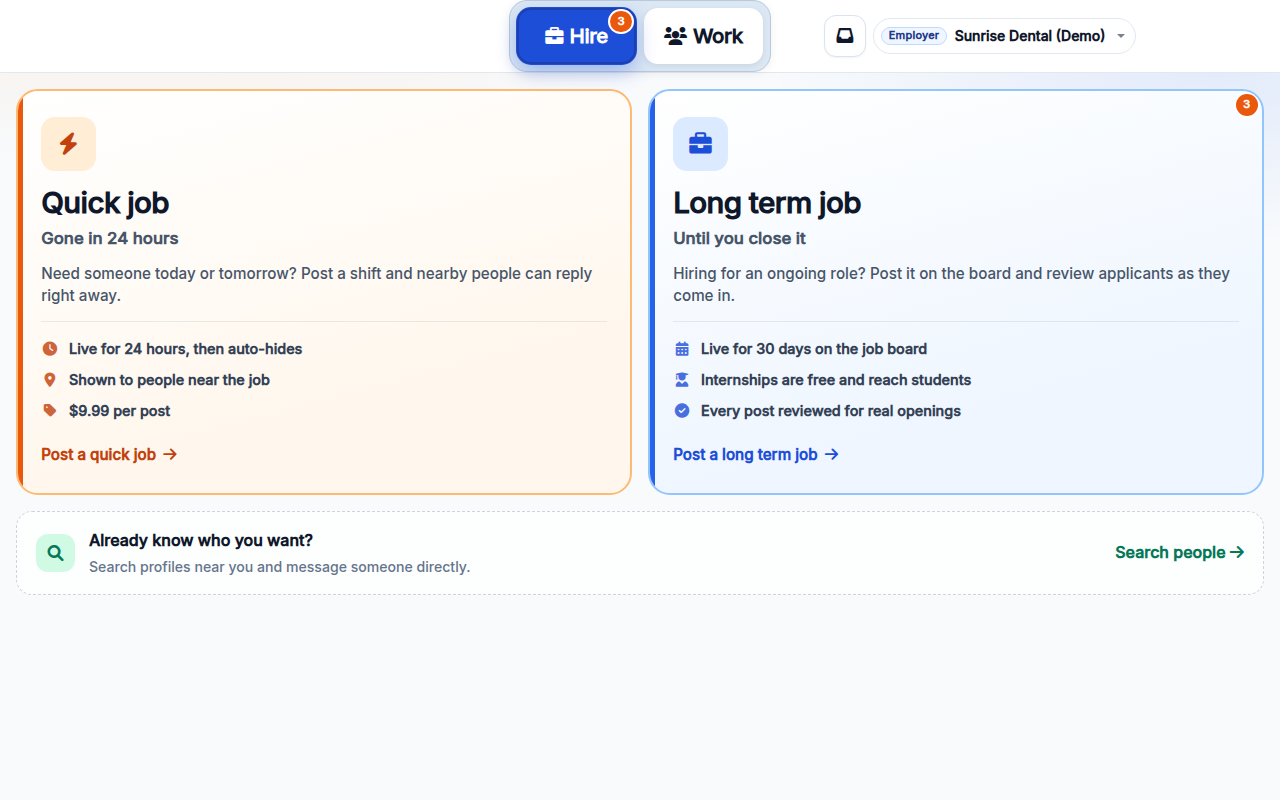
How do I post a quick job?
Hire → Quick job → Post it now. Say what you need filled, when, and the pay. It goes live right away and shows how many hours it has left.
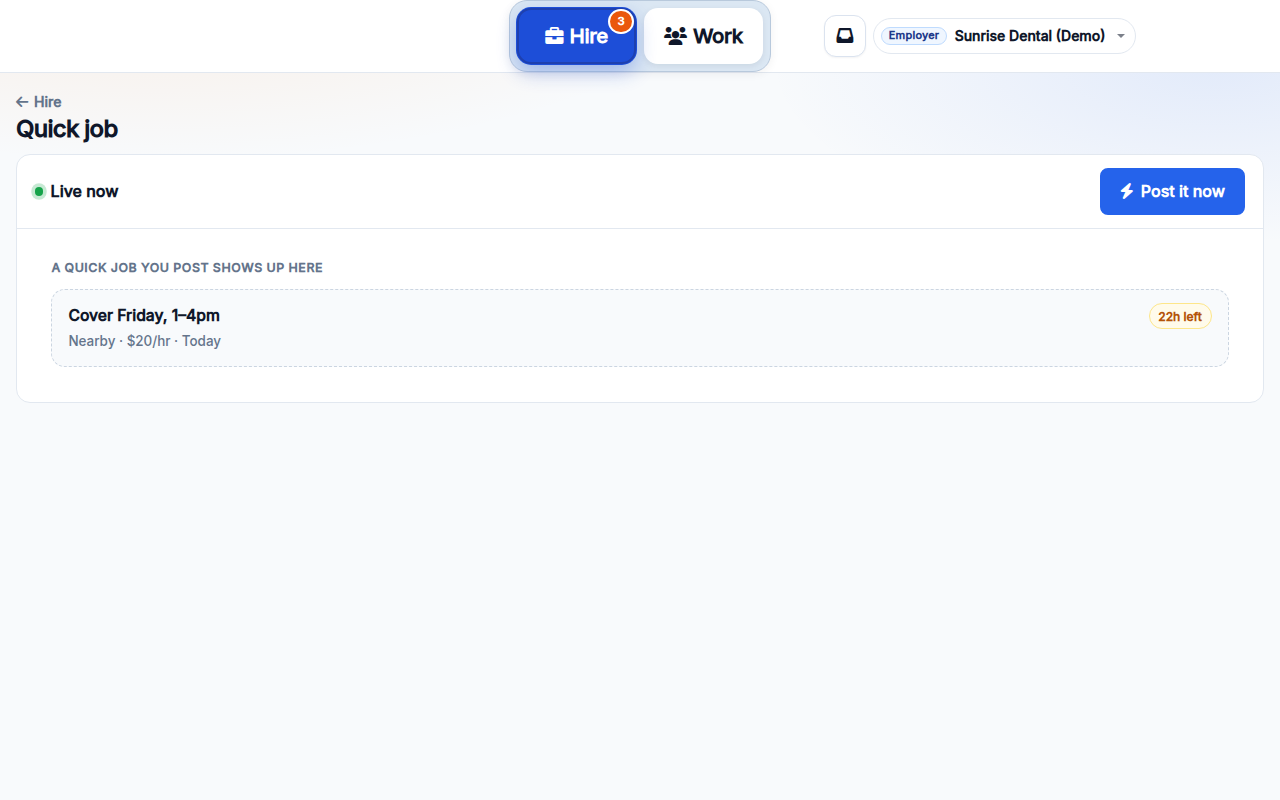
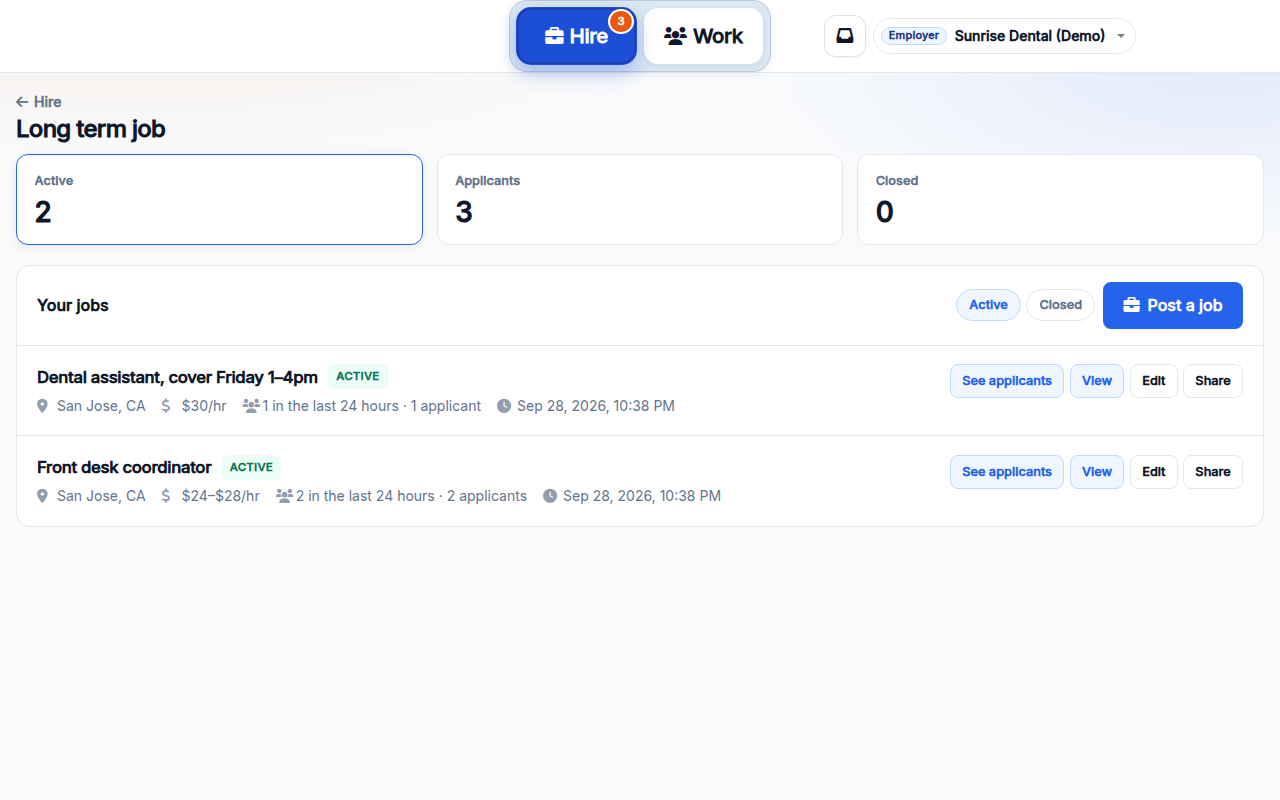
Where do I manage my long term jobs?
Hire → Long term job. You’ll see how many jobs are active, how many people applied, and how many are closed. Each job has See applicants, View, Edit, and Share.
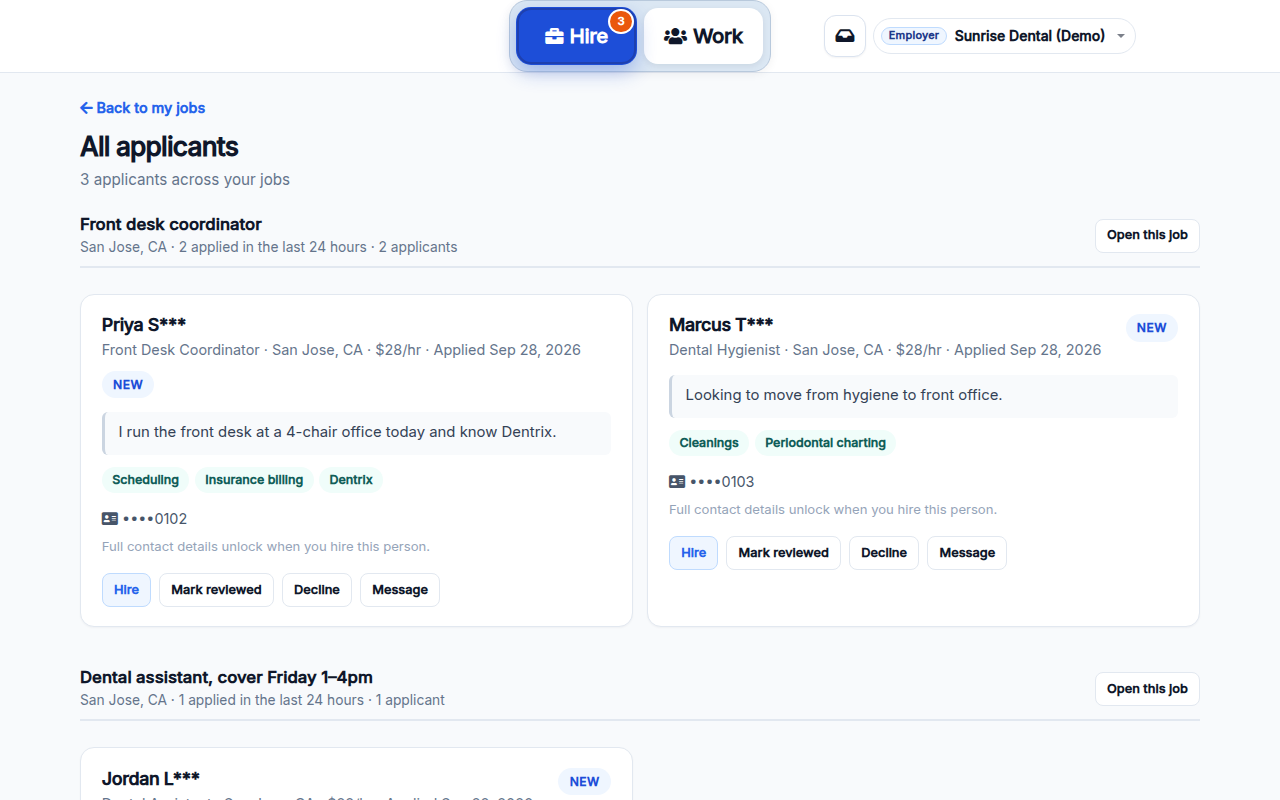
How do I review applicants?
Tap See applicants on a job, or the number on the Hire button. Each card shows the person’s role, pay, skills, and note. Choose Hire, Mark reviewed, Decline, or Message.
Last names and phone numbers stay hidden until you hire someone.
What happens when I tap Hire on an applicant?
- You see their full name and phone number.
- Everyone else still waiting on that job is declined automatically.
- The job shows as In progress on their dashboard.
We don’t text them that they’re hired, so send them a message with the start date and details.
Want to schedule them for days from now on? Invite them to your team in Work.
Can I find someone without posting a job?
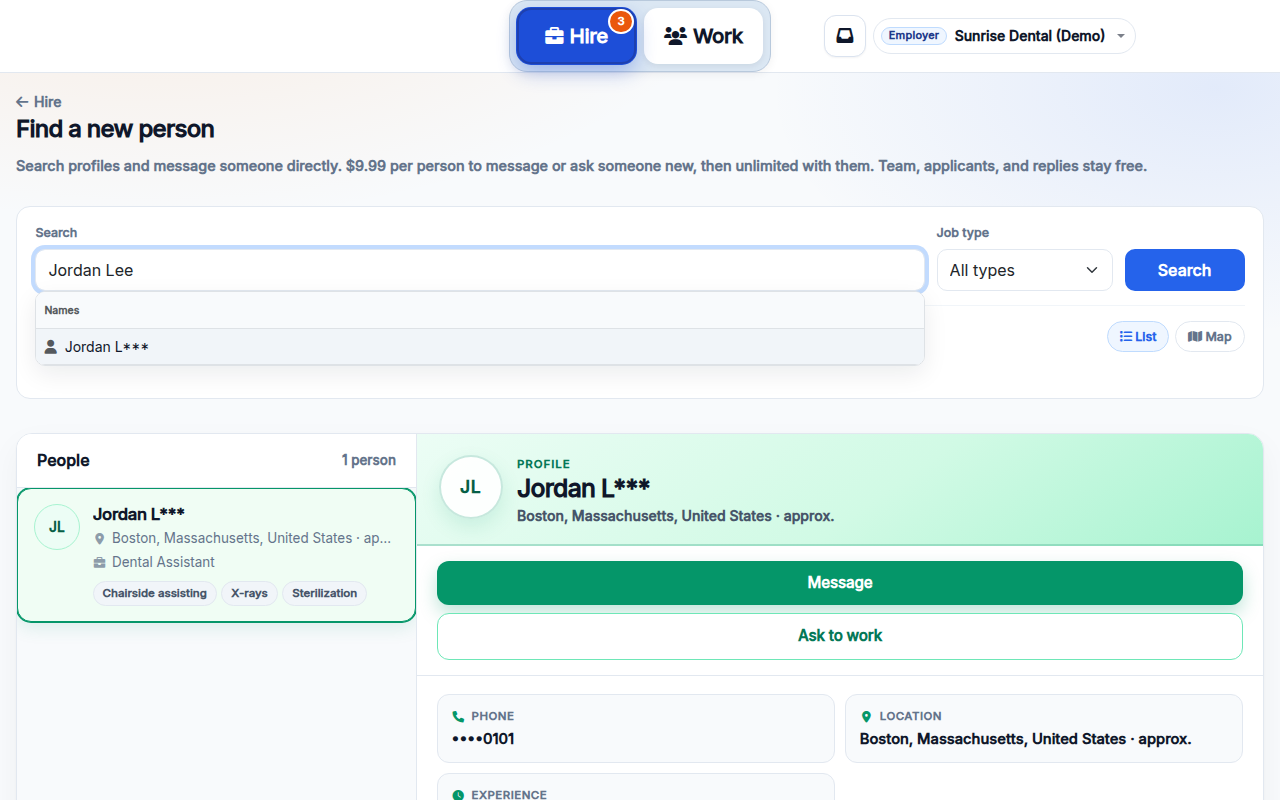
Yes. Hire → Search people. Search by name, skill, or location, near you or anywhere, as a list or on a map. Open a profile and tap Message or Ask to work.
Reaching someone new costs $9.99 per person, then messaging them is unlimited.
Employer Work: schedule your team
For people who already work with you. Add them to your team once, then ask who can work a day. Free.
Need someone you don’t know yet? That’s Hire →
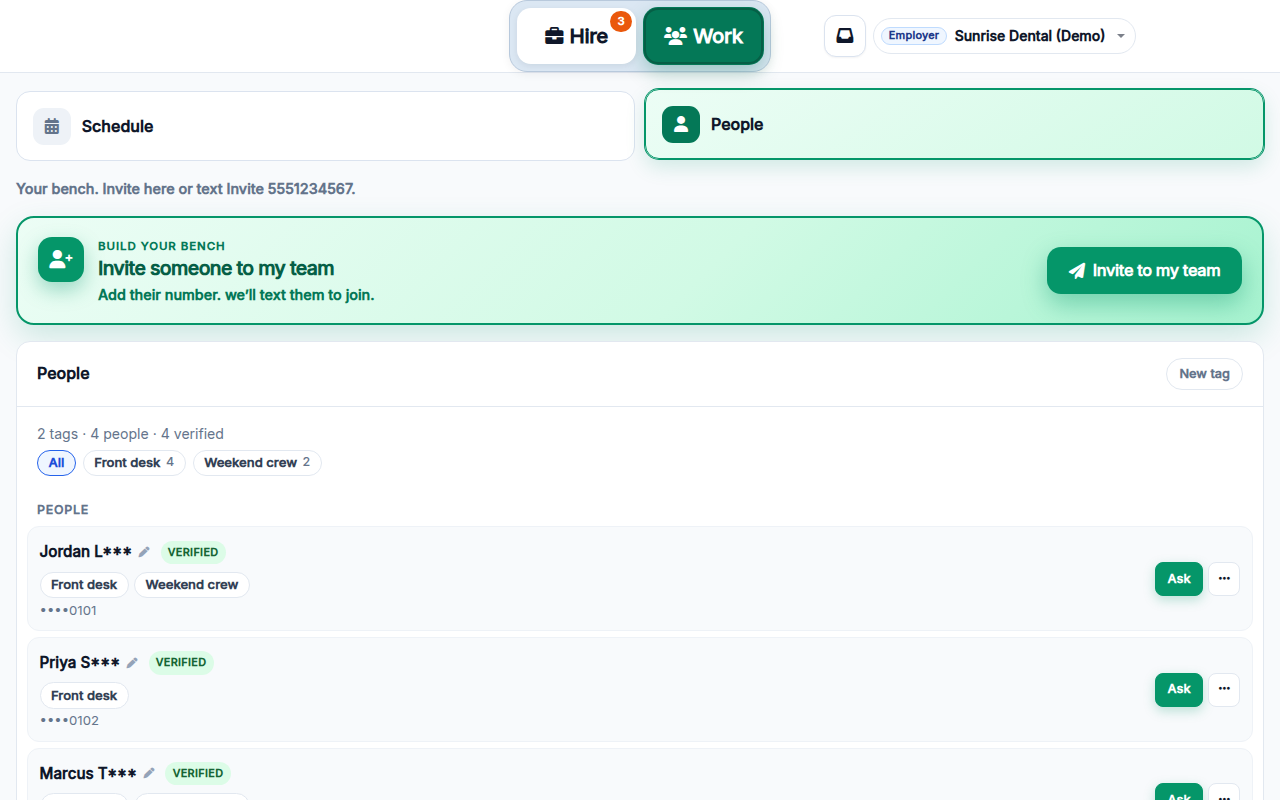
How do I add people to my team?
Work → People → Invite to my team. Add their phone number, and their email if you have it. If they haven’t signed up yet, we text them a join link and email it too, which helps when texts don’t arrive (common outside the US). Remind sends both again, and you can always copy the link or share it on WhatsApp.
Use tags like Front desk or Weekend crew to group people. One person can have more than one tag. Add on-call people as External / on-call.
How do I ask someone to work a day?
Two ways:
- Work → Schedule → tap an upcoming day → Ask who can work.
- Work → People → Ask next to a person.
They get a text asking if they can work that day and reply Y or N. You don’t have to chase anyone. If you asked several people for a set number of spots, the first ones to say yes get it and the rest are told the day is covered.
How do I see who’s working which day?
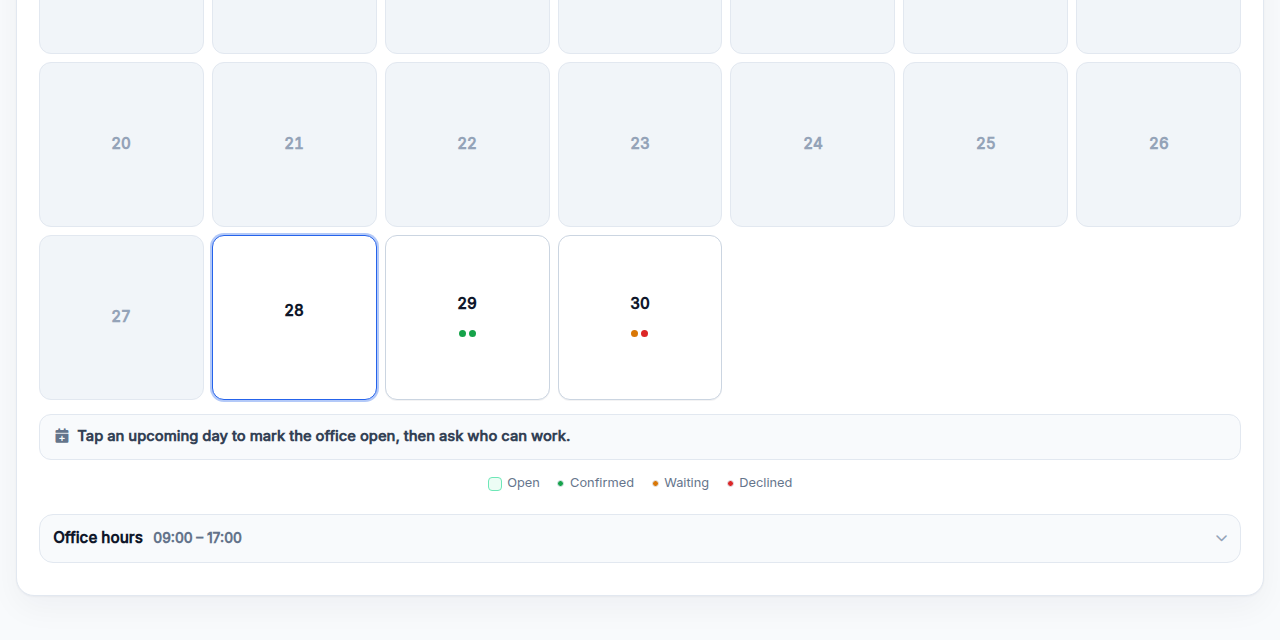
Work → Schedule. Each day shows colored dots:
- Green: confirmed
- Orange: waiting for an answer
- Red: declined
Set your usual Office hours at the bottom so new days start with the right times.
What if I close the office on a day people already confirmed?
Tap the day and choose Mark office closed. Everyone who confirmed gets a text saying the office is closed and their day is cancelled. You can mark the day open again anytime.
Can I ask for coverage by text instead of opening the site?
Yes. If your office phone is on your employer account, text our number:
Need 2 Fri 1–4pmasks your team for coverageWho's working today?shows who has confirmed or is still waitingWho's on my team?sends your team listInvite 5551234567adds someone to your team
We text your people, then text you back as they reply. Text HELP anytime for this list.
Same-day coverage by text
Text HI or HELP to get the menu
Employer Account
Signing up, what it costs, and how Hire and Work fit together.
How do I sign up as an employer?
Tap Log in and choose Continue with Google. In the US, Canada, and a few other countries you can also enter your phone number and we text you a code. New accounts go to a short employer sign-up: business name, your name, and location.

How much does it cost?
- Hire: $9.99 per job post. $9.99 per person to message someone new you found, then unlimited with them. Internship posts are free.
- Work: free. Your team, asking who can work, and replies cost nothing.
No contract. Team members are never charged.
Where are Hire and Work in the app?
At the top of every employer page. Blue Hire is for new people. Green Work is for your team. The number on Hire is how many new applicants are waiting.
Team member Hire: get a new job
For jobs with employers you don’t work for yet. Find a job, apply, and get hired.
Already on an employer’s team and got a text about a day? That’s Work →
How do I find jobs?
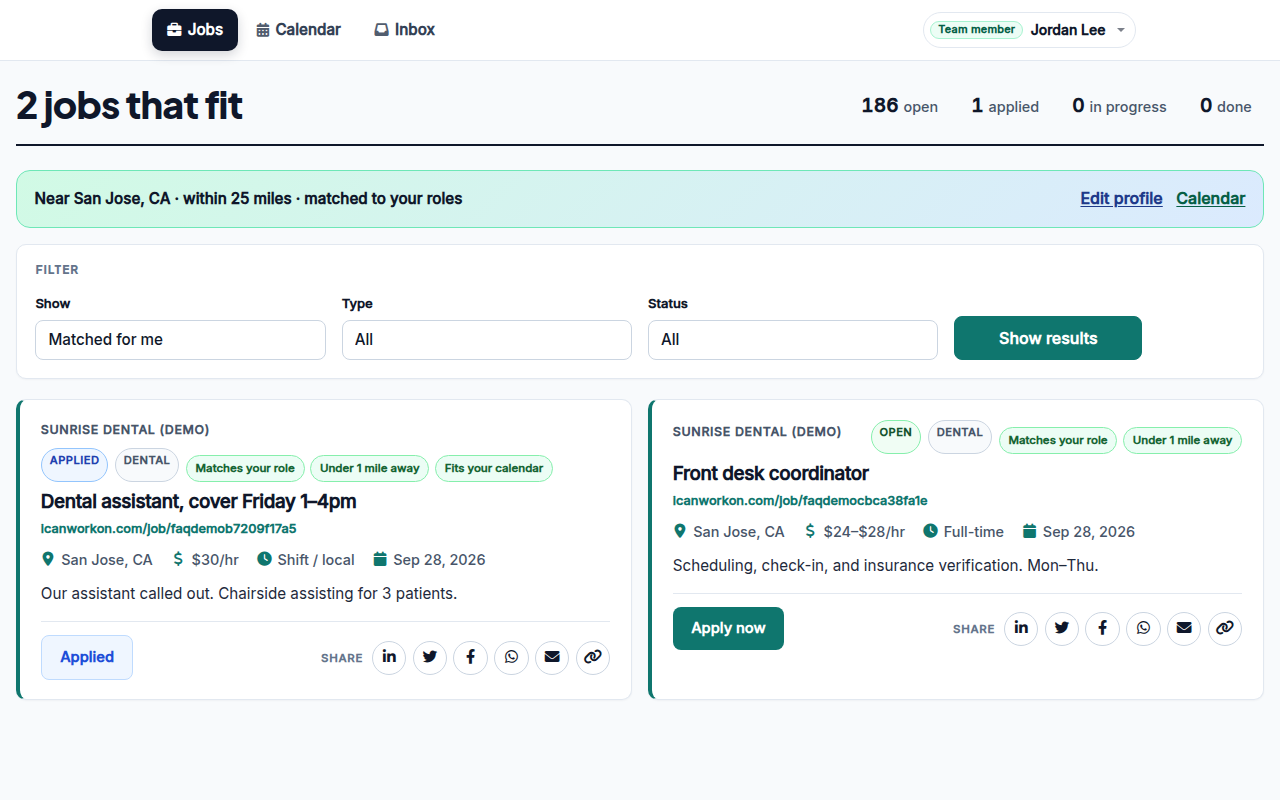
Open Jobs. Matched for me shows jobs that fit your roles, how far you’ll travel, and the days on your calendar. Tags like Matches your role, Under 1 mile away, and Fits your calendar tell you why a job was matched.
How do I apply?
Tap Apply now on any job and add a short note if you like. The job shows as Applied on your dashboard. Quick jobs are for today or tomorrow, so check back soon.
How do I know if I got the job?
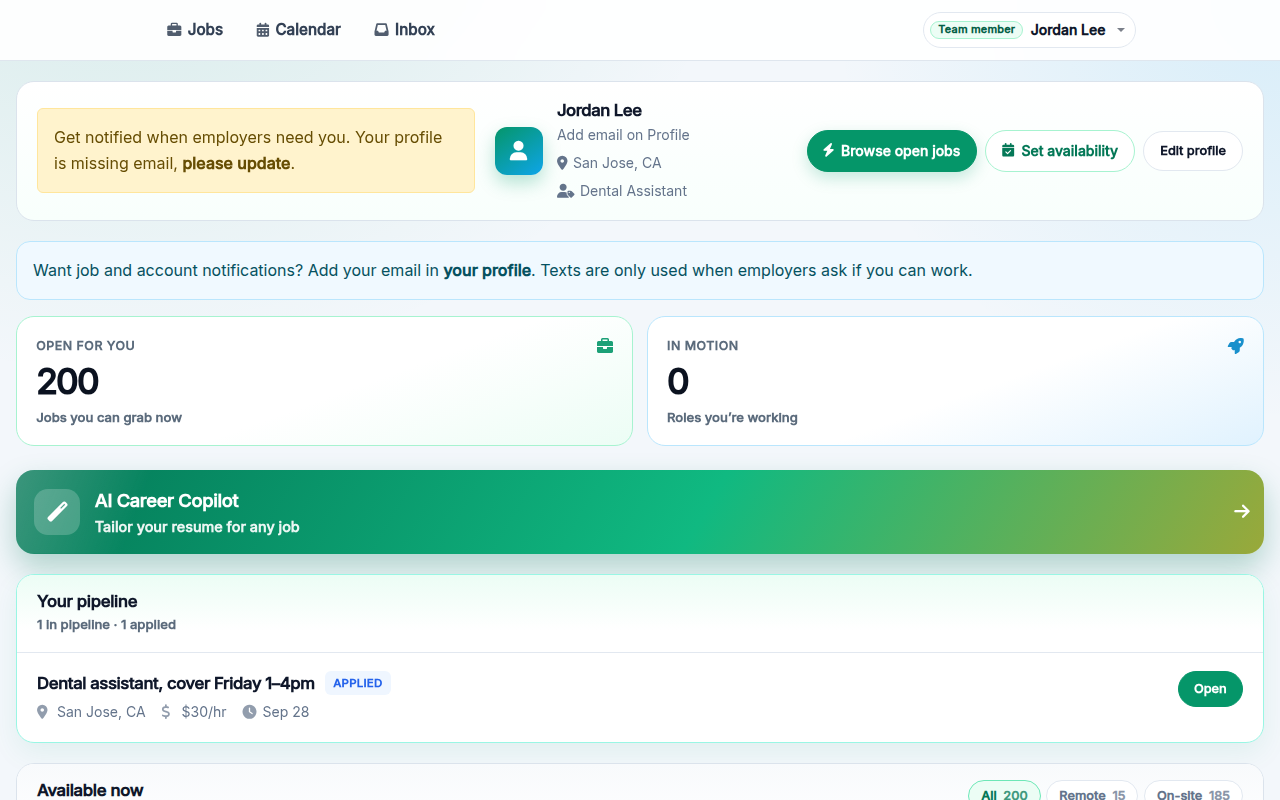
Check Your pipeline on your dashboard:
- Applied: the employer hasn’t decided yet.
- In progress: you’re hired. It also counts under In motion.
- Closed: the employer declined, or hired someone else.
Employers usually message you after hiring. Messages land in your Inbox, and you get an email too.
Getting hired is different from confirming a day. For texts like “Can you work Tue?”, see Work.
How do employers find me?
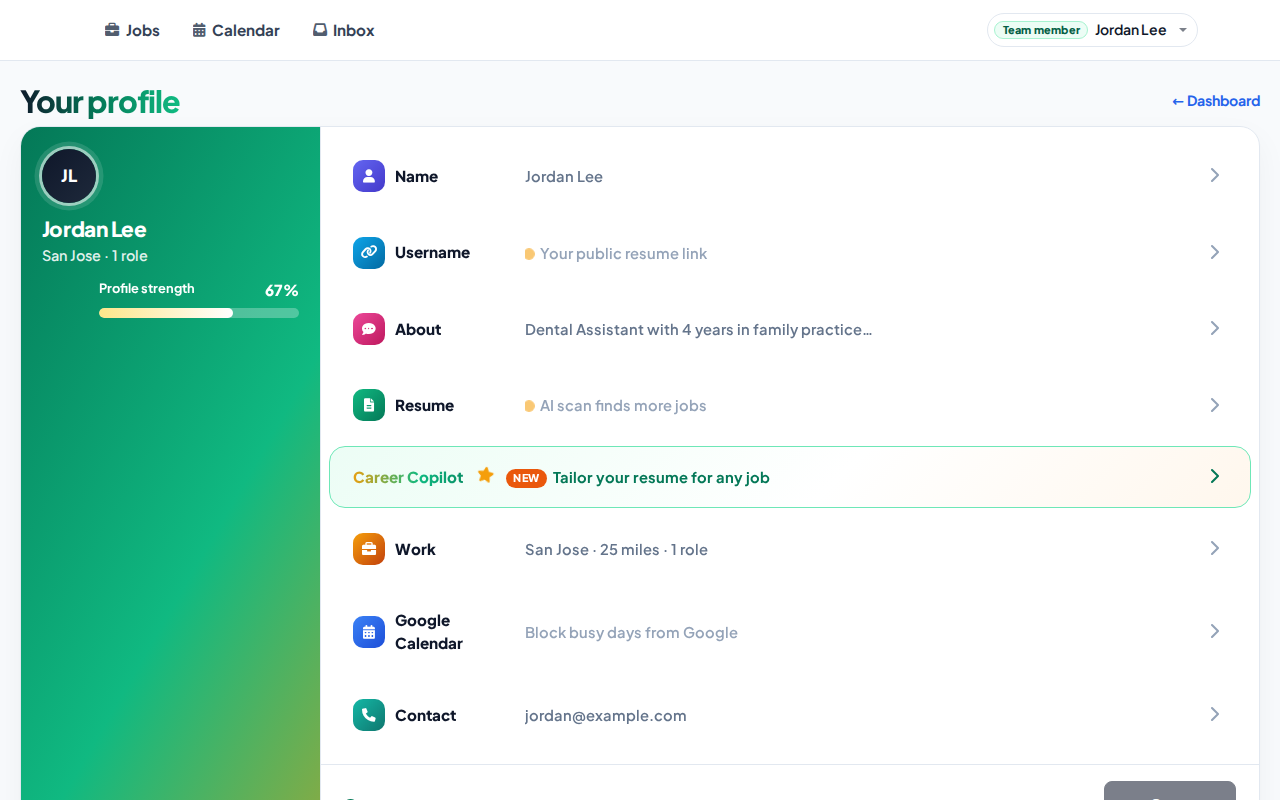
Through your profile. Fill in your roles, skills, about, and resume so you show up in searches. The Profile strength bar shows what’s missing. Career Copilot can tailor your resume for a job.
Team member Work: shifts for your employers
For employers who added you to their team. They text you to ask about days, and you confirm.
Looking for a new job instead? That’s Hire →
As soon as your day is confirmed, you get a text.
No text yet means it isn’t confirmed yet. You don’t need to check the app.
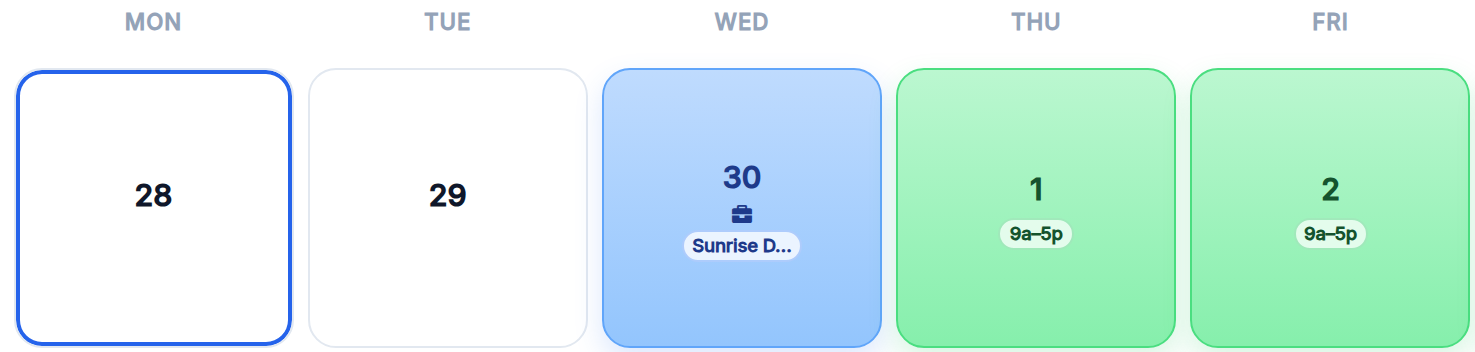
Your Calendar changes too
The confirmed day turns from green to blue, with a briefcase and the employer’s name.
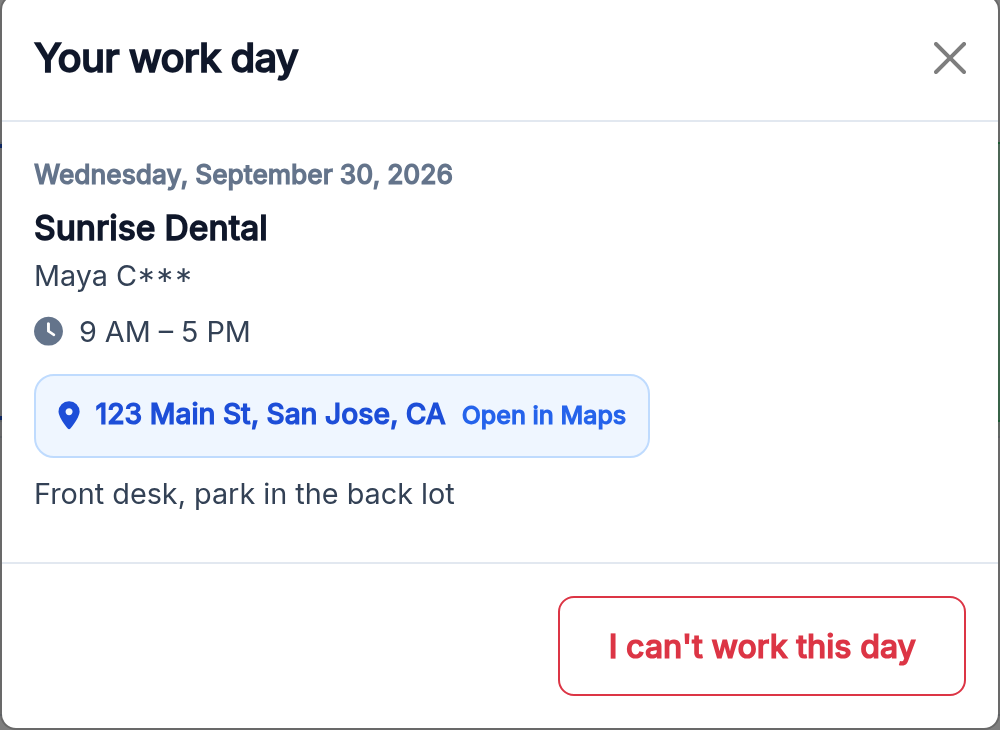
Tap the blue day to see your work day
- Employer and time
- Address, with Open in Maps
- Notes from the employer
- I can’t work this day cancels and tells the employer
While you haven’t answered yet, or if you said no or the day was covered, your Calendar doesn’t change.
One calendar for where you work, and where you can work more
Working for more than one employer, plus your own plans? Connect Google Calendar once and your Calendar shows it all in one place.
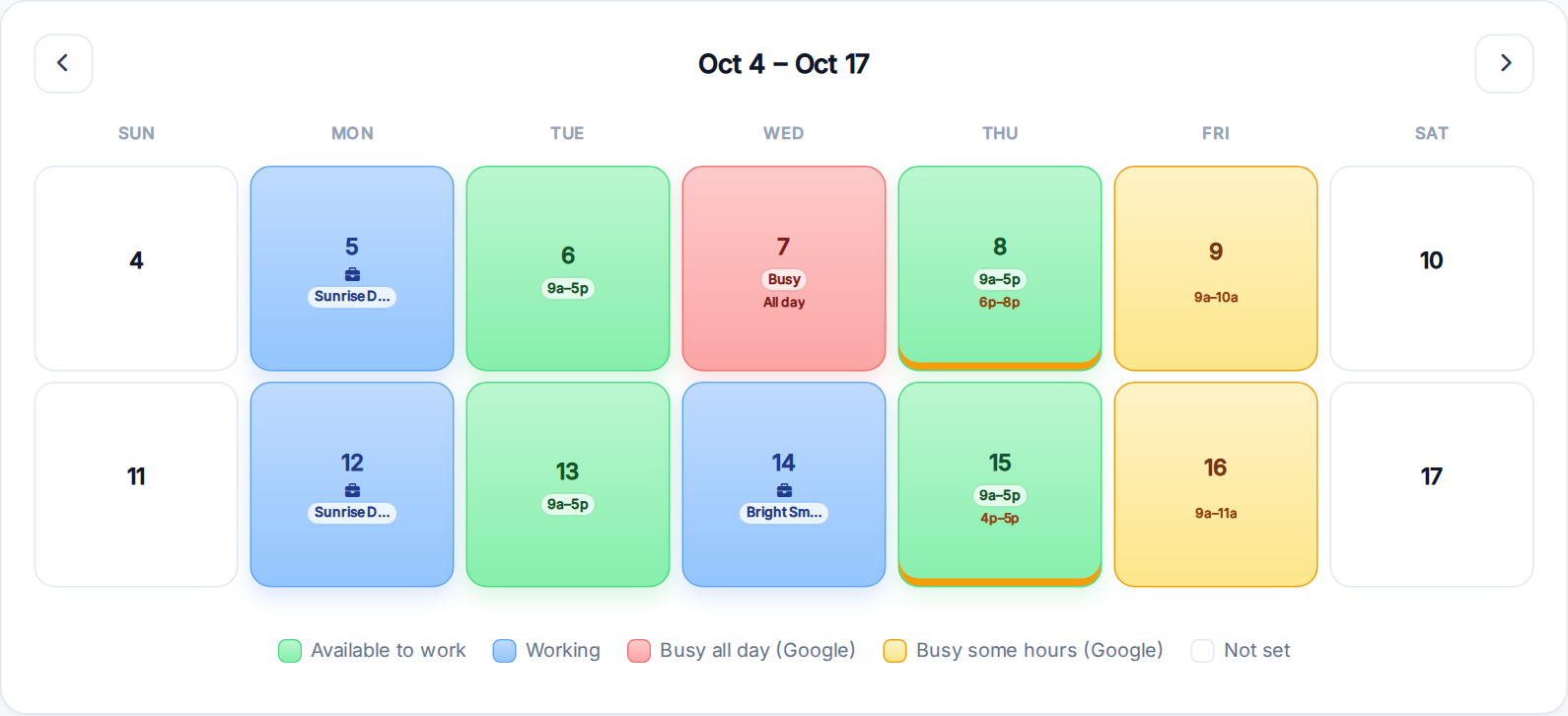
- Blue You’re working, with the employer’s name.
- Green You’re open to work these days.
- Red Busy on Google most of the day, so it’s marked not available.
- Amber Busy on Google for a few hours, with the times shown. A green day with an amber strip is still open, around that meeting.
Turn it on in Profile → Google Calendar → Connect. It updates by itself every few hours. We only see when you’re busy, never what the event is, and only you see these times.
How do I know an employer confirmed a day for me?
-
The employer asks you
Sunrise Dental: Can you work Wed Sep 30, 9AM–5PM at 123 Main St, San Jose? Reply Y/N or tap icanworkon.com/c/… -
You answer
Reply
YorN, or tap the link. Either way works.Y -
You get a text back right away
You’re set for Wed Sep 30. We let Sunrise Dental know. Thanks!You’re working. Show up that day and time.
Sunrise Dental: Thanks! Wed Sep 30 is already covered.You’re not working that day. The spots filled before you answered.
Sunrise Dental: Office closed Wed Sep 30 9AM–5PM, so your day is cancelled. Sorry!Your day is cancelled. The employer closed that day.
No problem, we’ll tell them you can’t make Wed Sep 30. Thanks!You said no. Nothing else to do.
Saying yes is the confirmation. The employer doesn’t approve it again. If the spots already filled, you get the “already covered” text instead.
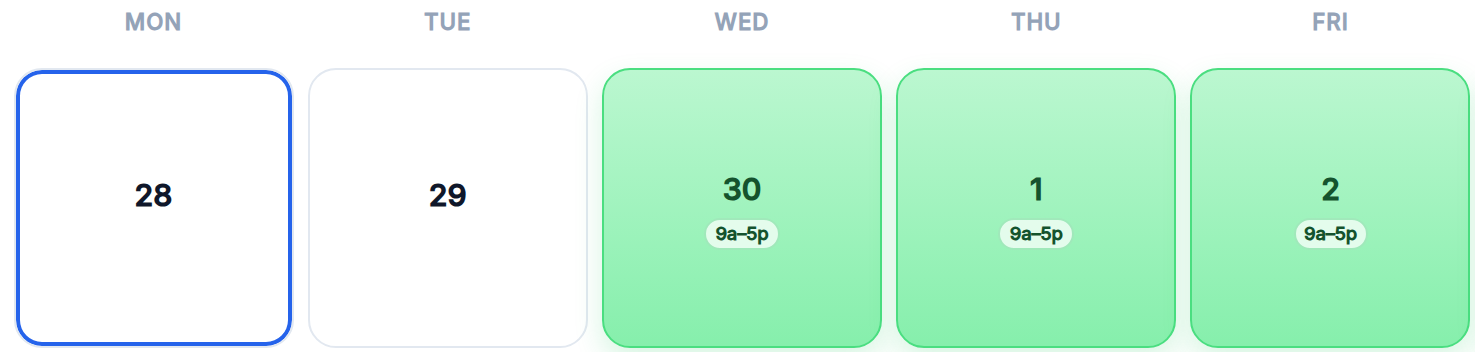
Your Calendar changes at the same time. The day turns from green to blue:
How do I tell employers which days I can work?
Open Calendar and tap the days you’re available, up to 3 months ahead. Green days are available. Blue days are confirmed work days.
To block busy days automatically, connect Google Calendar from your profile.
How do I join an employer’s team?
The employer adds your phone number, and sometimes your email, and you get an invite link by text and email. Tap it to join. After that, they can text you to ask about days.
How do I stop these texts?
Reply STOP to any text, or HELP for help. See the SMS program for details.
Team member Account
Signing up, privacy, and pay.
How do I sign up?
Tap Log in and choose Continue with Google. In the US, Canada, and a few other countries you can also enter your phone number and we text you a code. No password to remember.
Does it cost anything?
No. You’re never charged, and you keep 100% of what you earn. I Can Work On is run by Changing Our Futures, a 501(c)(3) nonprofit.
Is my identity private?
Yes. Your last name, phone, and email stay masked until you choose to connect or get hired. Employers see something like Jordan L*** and ••••0101.
How do I get paid?
Directly by the employer. We don’t take a cut.
Where do employer messages go?
To your Inbox. You also get an email, and you can reply from either place.
Still stuck? Email support@icanworkon.com.